



Launching the app
This opens the hexmakR Shiny designer in your default browser (or the RStudio Viewer pane).
App layout
The app is divided into two panels:
Left panel — Live preview
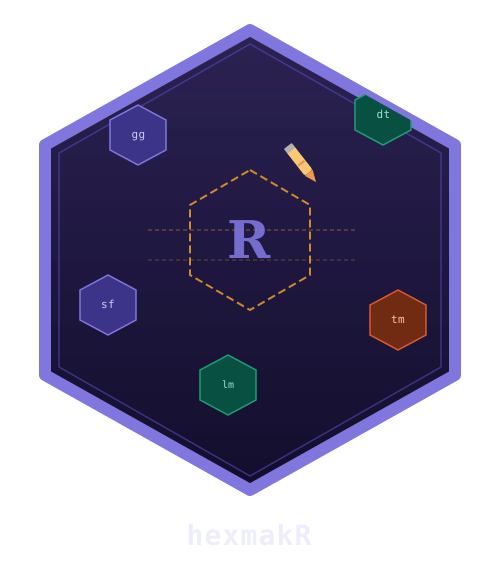
- The hex sticker updates in real time as you change any control.
- The Export PNG button downloads a 600 × 693 px transparent PNG.
Right panel — Controls
The controls are organized into five sections:
1. Text
| Control | Description |
|---|---|
| Package Name | The main text on the sticker |
| Subtitle | Optional smaller text below the name |
| URL | Optional URL near the bottom |
| Font Size | Slider from 6–32 pt |
| Font | Dropdown with 13 font options |
| Bold / Italic | Checkboxes |
2. Icon
| Control | Description |
|---|---|
| Built-in Icon | Dropdown of all 46 icons, grouped by category |
| Custom Image | Upload a PNG or JPEG to use instead |
| Icon Size | Multiplier from 0.3 to 2.5 |
Workflow tips
- Start with a theme — pick a theme in the Theme section that matches your package’s domain.
- Pick an icon — use the Built-in Icon dropdown or upload a custom logo.
- Adjust text — set your package name; add a subtitle only if it fits at the chosen font size.
- Fine-tune colors — the Custom Colors section lets you tweak individual colors without switching themes.
- Export — click the Export PNG button. The file will be named after your package.
After export
Place the downloaded PNG at man/figures/logo.png in your
package directory and add it to your README:
See vignette("programmatic-usage") for details on
integrating the sticker with usethis and pkgdown.